Quickstart Guide
This guide shows how to quickly get started with Kotlin DataFrame:
you'll learn how to integrate it into your Gradle (or Maven) project, load data, perform basic transformations, and build a simple plot using Kandy.
You can also view the similar guide for Kotlin Notebook and Jupyter notebooks with Kotlin kernel as a notebook on GitHub or download quickstart.ipynb.
Set up Kotlin DataFrame in your project
Add the Kotlin DataFrame library general artifact dependency:
This will add the Kotlin DataFrame core API and implementation as well as all IO modules (excluding experimental ones).
For flexible dependencies configuration see Custom configuration.
Set up Kotlin DataFrame Compiler Plugin
The Kotlin DataFrame Compiler Plugin generates extension properties for dataframe columns, allowing name- and type-safe access.
Add it to your project in the "plugins" section:
Read dataframe from sources
Kotlin DataFrame supports all popular data formats, including CSV, JSON, Excel, Apache Parquet, and Apache Arrow, as well as reading from various databases.
Read a CSV with the "JetBrains Repositories" dataset into the df variable using DataFrame.readCsv() method:
You can also download this file: jetbrains_repositories.csv and read it locally.
Variable df has the type DataFrame.
Display And Explore
To print your dataframe into the stdout (console), you can use the .print() extension method:
Output:
Interactive web outputs
It’s much easier to explore your data as an interactive web table! Use .toHtml() and then write it to a file using .writeHtml().
Our guides and examples actually use these web tables!
Alternatively, you can open it directly in your browser without saving it to a file using the openInBrowser() method.
Describe
Use the .describe() method to get dataframe summaries — column types, number of nulls, and simple statistics. The result of describe() is also of the type DataFrame, so you can use .print() on it or save it as a web table:
Provide Data Schema
A schema describes the structure of a DataFrame: it defines which columns the DataFrame contains and what types of values are stored in each column.
With the Compiler Plugin enabled, Kotlin DataFrame can automatically generate extension properties from a schema. These properties provide type-safe access to columns when working with a DataFrame, allowing you to refer to columns by property name instead of using string literals.
A schema can be represented as a Kotlin interface (or data class). Each property in the interface corresponds to a column in the DataFrame:
the property name corresponds to the column name;
the property type corresponds to the type of values stored in that column.
For example, a schema with properties val name: String and val age: Int describes a DataFrame that contains two columns: name with string values and age with integer values.
You can define schema manually, but the most convenient way is to use generateInterfaces() — a special method that returns a string with a schema of a receiver DataFrame:
Output:
Now you can copy-paste this schema into your code and use it in the cast() method to specify the schema of your DataFrame (assigning the result to a new variable dfRepository)
Now you can use extension properties, for example, to get the "full_name" column as a property:
But most importantly, you can use these properties in various operations!
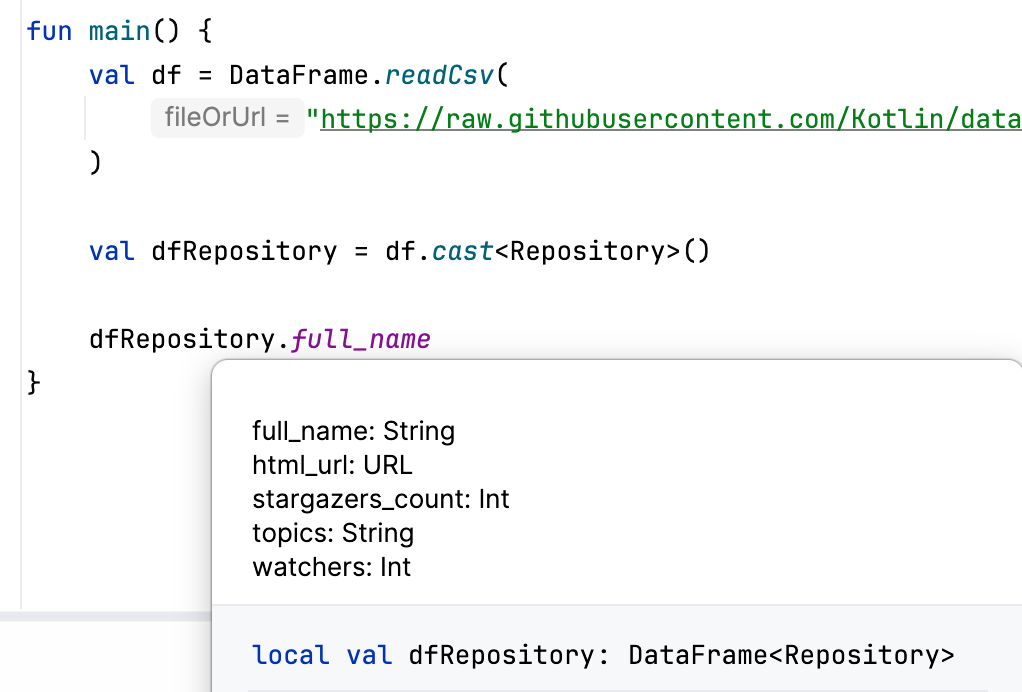
After performing some operations, the schema may change: existing columns may have been removed, new columns can be added, and both column names and types may be modified. The Compiler Plugin automatically tracks these changes, updates the schema, and generates new extension properties on the fly.
You can inspect the current schema at any time by hovering over a DataFrame variable or any DataFrame expression.
Select Columns
Kotlin DataFrame features a typesafe Columns Selection DSL, enabling flexible and safe selection of any combination of columns. Column selectors are widely used across operations — one of the simplest examples is .select { }, which returns a new DataFrame with only the columns chosen in a Columns Selection expression.
Select some columns:
Row Filtering
Some operations use the DataRow API, with expressions and conditions that are applied for all DataFrame rows. For example, .filter { } returns a new DataFrame with rows that satisfy a condition given by the row expression.
Inside a row expression, you can access the values of the current row by column names through extension properties. This is similar to the Columns Selection DSL, but in this case the properties represent actual values, not column references.
Filter rows by "stargazers_count" value:
Columns Rename
Columns can be renamed using the .rename { } operation, which also uses the Columns Selection DSL to select a column to rename. The rename operation does not perform the renaming immediately; instead, it creates an intermediate object that must be finalized into a new DataFrame by calling the .to() function with the new column name.
Rename "full_name" and "stargazers_count" columns:
The schema is updated automatically after rename so you can use new extension properties right away:
Modify Columns
Column values can be modified using the update { } and convert { } operations. Both operations select columns to modify via the Columns Selection DSL and, similar to rename, create an intermediate object that must be finalized to produce a new DataFrame.
The update operation preserves the original value types, while convert allows changing the type. In both cases, column names and their positions remain unchanged.
Update "name" and convert "topics":
Check the new "topics" type out:
Output:
Adding New Columns
The .add("name") { rowExpression } operation allows creating a DataFrame with a new column, where the value for each row is computed based on the existing values in that row. These values can be accessed within the row expressions.
Add a new Boolean column "isIntellij":
Grouping And Aggregating
A DataFrame can be grouped by key columns, meaning its rows are split into groups based on the values in the key columns. The .groupBy { } operation selects columns and groups the DataFrame by their values, using them as grouping keys.
The result is a GroupBy — a DataFrame-like structure that associates each key with the corresponding subset of the original DataFrame.
Group dfWithIsIntellij by "isIntellij":
A GroupBy can be aggregated — that is, you can compute one or several summary statistics for each group. The result of the aggregation is a DataFrame containing the key columns along with new columns holding the computed statistics for a corresponding group.
For example, count() computes the size of each group. It returns a new DataFrame where each row corresponds to a group and contains the group's unique key (or combination of keys), along with a new "count" column with the group size:
Compute several statistics with .aggregate { } that provides an expression for aggregating:
Sorting Rows
.sortBy { }/.sortByDesc { } sorts rows by value in selected columns, returning a DataFrame with sorted rows. take(n) returns a new DataFrame with the first n rows.
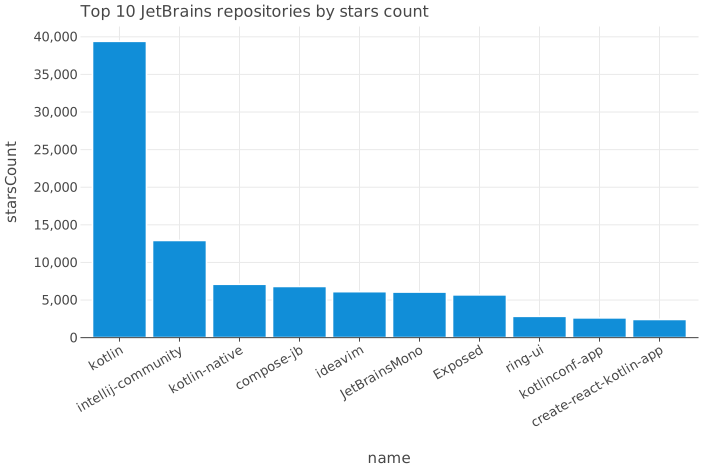
Combine them to get the Top-10 repositories by number of stars:
Plotting With Kandy
Kandy is a Kotlin plotting library designed to bring Kotlin DataFrame features into chart creation, providing a convenient and typesafe way to build data visualizations.
Add kandy to your project:
Build a simple bar chart with the .plot { } extension for DataFrame, that allows using DataFrame extension properties inside the Kandy plotting DSL:
Write DataFrame
Kotlin DataFrame supports writing to all formats that it is capable of reading (except writing to databases, OpenAPI JSON and Apache Parquet, for now).
Write a dataframe into an Excel file:
What's Next?
In this quickstart, we covered the basics — reading data, transforming it, and building a simple visualization.
Ready to go deeper? Check out what’s next:
📘 Explore in-depth guides and various examples with different datasets, API usage examples, and practical scenarios that help you understand the main features of Kotlin DataFrame.
🔤 Learn more about Data Schemas and Extension Properties
and make working with your data both convenient and type-safe.🛠️ Browse the operations overview to learn what Kotlin DataFrame can do.
💡 Learn more about Kotlin DataFrame Compiler Plugin
for auto-generated column access in your IntelliJ IDEA projects.📊 Master Kandy for stunning and expressive DataFrame visualizations learning Kandy Documentation.