# Quickstart Guide
> For the complete documentation index, see [llms.txt](https://kotlin.github.io/dataframe/llms.txt).
This guide shows how to quickly get started with Kotlin DataFrame:
you'll learn how to integrate it into your [Gradle](setupgradle.html) (or [Maven](setupmaven.html)) project, load data, perform basic transformations, and build a simple plot using Kandy.
You can also view the similar guide for [Kotlin Notebook](setupkotlinnotebook.html) and [Jupyter notebooks with Kotlin kernel](setupjupyter.html) as a [notebook on GitHub](https://github.com/Kotlin/dataframe/tree/master/examples/notebooks/quickstart/quickstart.ipynb) or download [](resources/quickstart.ipynb).
## Set up Kotlin DataFrame in your project
> **Tip:**
> See [Setup Kotlin DataFrame in Gradle](setupgradle.html) and [Setup Kotlin DataFrame in Maven](setupmaven.html) for detailed setup instructions.
Add the Kotlin DataFrame library [general artifact](modules.html#dataframe-general) dependency:
Gradle (Kotlin DSL):
```KOTLIN
dependencies {
implementation("org.jetbrains.kotlinx:dataframe:1.0.0-rc02")
}
```
Gradle (Groovy DSL):
```GROOVY
dependencies {
implementation 'org.jetbrains.kotlinx:dataframe:1.0.0-rc02'
}
```
Maven:
```XML
org.jetbrains.kotlinx
dataframe
1.0.0-rc02
```
This will add the [Kotlin DataFrame core API and implementation](modules.html#dataframe-core) as well as all [IO modules](modules.html#io-modules) (excluding [experimental ones](modules.html#experimental-modules)).
For flexible dependencies configuration see [Custom configuration](setupcustomgradle.html).
### Set up Kotlin DataFrame Compiler Plugin
The [Kotlin DataFrame Compiler Plugin](compiler-plugin.html) generates [extension properties](extensionpropertiesapi.html) for dataframe columns, allowing name- and type-safe access.
Add it to your project in the "plugins" section:
Gradle(Kotlin DSL):
```KOTLIN
plugins {
kotlin("plugin.dataframe") version "2.4.21"
}
```
Gradle(Groovy DSL):
```GROOVY
plugins {
id 'org.jetbrains.kotlin.plugin.dataframe' version '2.4.21'
}
```
Maven:
```XML
kotlin-maven-plugin
org.jetbrains.kotlin
2.4.21
kotlin-dataframe
org.jetbrains.kotlin
kotlin-maven-dataframe
2.4.21
```
## Read dataframe from sources
Kotlin DataFrame supports all popular data formats, including [CSV](read.html#read-from-csv), [JSON](read.html#read-from-json), [Excel](read.html#read-from-excel), [Apache Parquet](parquet.html), and [Apache Arrow](read.html#read-apache-arrow-formats), as well as [reading from various databases](readsqldatabases.html).
Read a CSV with the "JetBrains Repositories" dataset into the `df` variable using [DataFrame.readCsv()](read.html#read-from-csv) method:
```KOTLIN
// Read a csv file from the given URL string
val df = DataFrame.readCsv(
"https://raw.githubusercontent.com/Kotlin/dataframe/master/data/jetbrains_repositories.csv",
)
```
You can also download this file: [](resources/jetbrains_repositories.csv) and read it locally.
Variable `df` has the type [DataFrame](dataframe.html).
## Display And Explore
To print your dataframe into the stdout (console), you can use the `.print()` extension method:
```KOTLIN
df.print()
```
Output:
```TEXT
full_name html_url stargazers_count topics watchers
String URL Int String Int
---- ---- ---- ---- ----
0 JetBrains/JPS https://github.com/JetBrains/JPS 23 [] 23
1 JetBrains/YouTrackSharp https://github.com/JetBrains/YouTrack... 115 [jetbrains, jetbrains-youtrack, youtr... 115
2 JetBrains/colorSchemeTool https://github.com/JetBrains/colorSch... 290 [] 290
3 JetBrains/ideavim https://github.com/JetBrains/ideavim 6120 [ideavim, intellij, intellij-platform... 6120
4 JetBrains/youtrack-vcs-hooks https://github.com/JetBrains/youtrack... 5 [] 5
5 JetBrains/youtrack-rest-ruby-library https://github.com/JetBrains/youtrack... 8 [] 8
6 JetBrains/emacs4ij https://github.com/JetBrains/emacs4ij 47 [] 47
7 JetBrains/codereview4intellij https://github.com/JetBrains/coderevi... 11 [] 11
8 JetBrains/teamcity-nuget-support https://github.com/JetBrains/teamcity... 41 [nuget, nuget-feed, teamcity, teamcit... 41
9 JetBrains/Grammar-Kit https://github.com/JetBrains/Grammar-Kit 534 [] 534
10 JetBrains/intellij-starteam-plugin https://github.com/JetBrains/intellij... 6 [] 6
...
5 columns x 562 rows
```
### Interactive web outputs
It’s much easier to explore your data as an interactive web table! Use [.toHtml()](tohtml.html) and then write it to a file using `.writeHtml()`.
Our guides and examples actually use these web tables!
```KOTLIN
df.toHtml().writeHtml("df.html")
```
[Embedded content](./resources/dfToHtml.html)
Alternatively, you can open it directly in your browser without saving it to a file using the `openInBrowser()` method.
```KOTLIN
df.toHtml().openInBrowser()
```
### Describe
Use the [.describe()](describe.html) method to get dataframe summaries — column types, number of nulls, and simple statistics. The result of `describe()` is also of the type [DataFrame](dataframe.html), so you can use `.print()` on it or save it as a web table:
```KOTLIN
df.describe()
```
[Embedded content](./resources/dfDescribe.html)
## Provide Data Schema
A [schema](schemas.html) describes the structure of a [DataFrame](dataframe.html): it defines which columns the DataFrame contains and what types of values are stored in each column.
With the [Compiler Plugin](compiler-plugin.html) enabled, Kotlin DataFrame can automatically generate [extension properties](extensionpropertiesapi.html) from a schema. These properties provide type-safe access to columns when working with a [DataFrame](dataframe.html), allowing you to refer to columns by property name instead of using string literals.
A schema can be represented as a Kotlin interface (or data class). Each property in the interface corresponds to a column in the DataFrame:
* the property name corresponds to the column name;
* the property type corresponds to the type of values stored in that column.
For example, a schema with properties `val name: String` and `val age: Int` describes a `DataFrame` that contains two columns: `name` with string values and `age` with integer values.
You can define schema manually, but the most convenient way is to use [generateInterfaces()](dataschemagenerationmethods.html#generateinterfaces) — a special method that returns a string with a schema of a receiver `DataFrame`:
```KOTLIN
df.generateInterfaces("Repository").print()
```
Output:
```KOTLIN
@DataSchema
interface Repository {
val full_name: String
val html_url: java.net.URL
val stargazers_count: Int
val topics: String
val watchers: Int
}
```
Now you can copy-paste this schema into your code and use it in the [cast()](cast.html) method to specify the schema of your `DataFrame` (assigning the result to a new variable `dfRepository`)
```KOTLIN
val dfRepository = df.cast()
```
Now you can use [extension properties](extensionpropertiesapi.html), for example, to get the "full_name" column as a property:
```KOTLIN
val fullNameColumn: DataColumn = dfRepository.full_name
```
[Embedded content](./resources/dfRepositoryGetFullName.html)
But most importantly, you can use these properties in various operations!
> **Warning:**
> In a notebook, you don't need to specify the schema manually, but you need to have run a cell containing a `DataFrame` variable to generate extension properties for it. They can be used from the next cell onwards.
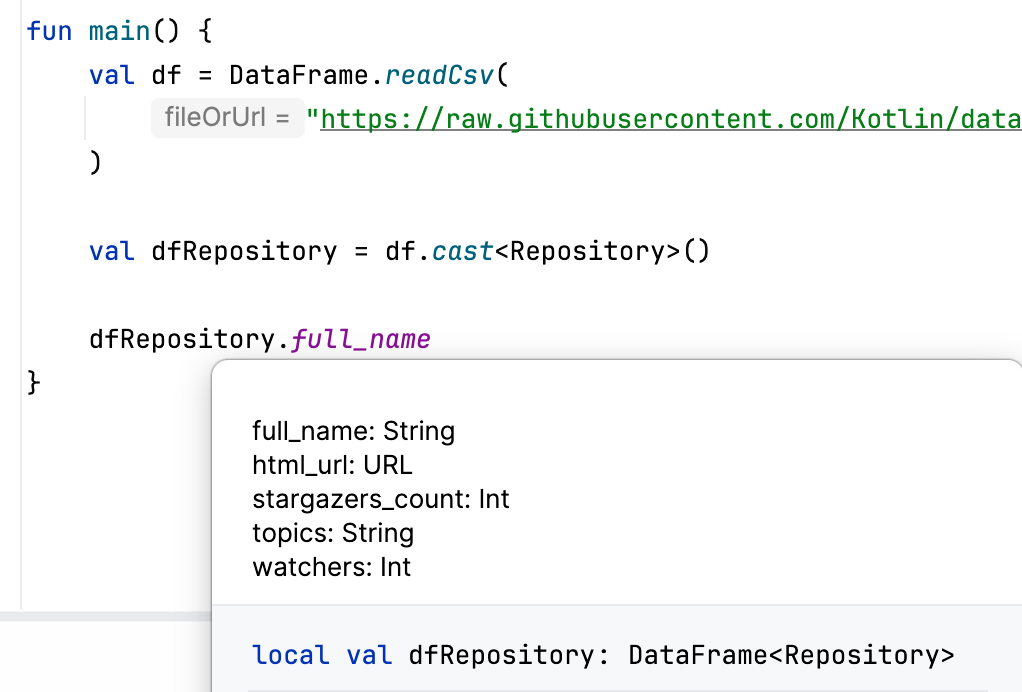
After performing some operations, the schema may change: existing columns may have been removed, new columns can be added, and both column names and types may be modified. The [Compiler Plugin](compiler-plugin.html) automatically tracks these changes, updates the schema, and generates new [extension properties](extensionpropertiesapi.html) on the fly.
You can inspect the current schema at any time by hovering over a [DataFrame](dataframe.html) variable or any `DataFrame` expression.
## Select Columns
Kotlin DataFrame features a typesafe [Columns Selection DSL](columnselectors.html), enabling flexible and safe selection of any combination of columns. Column selectors are widely used across operations — one of the simplest examples is [.select { }](select.html), which returns a new `DataFrame` with only the columns chosen in a Columns Selection expression.
Select some columns:
```KOTLIN
// Select "full_name", "stargazers_count" and "topics" columns
val dfSelected = dfRepository.select { full_name and stargazers_count and topics }
```
[Embedded content](./resources/notebook_test_quickstart_5.html)
## Row Filtering
Some operations use the [DataRow API](datarow.html), with [expressions](datarow.html#row-expressions) and [conditions](datarow.html#row-conditions) that are applied for all `DataFrame` rows. For example, [.filter { }](filter.html) returns a new `DataFrame` with rows that satisfy a condition given by the row expression.
Inside a row expression, you can access the values of the current row by column names through [extension properties](extensionpropertiesapi.html). This is similar to the [Columns Selection DSL](columnselectors.html), but in this case the properties represent actual values, not column references.
Filter rows by "stargazers_count" value:
```KOTLIN
// Keep only rows where "stargazers_count" value is more than 1000
val dfFiltered = dfSelected.filter { stargazers_count >= 1000 }
```
[Embedded content](./resources/notebook_test_quickstart_6.html)
## Columns Rename
Columns can be renamed using the [.rename { }](rename.html) operation, which also uses the Columns Selection DSL to select a column to rename. The [rename](rename.html) operation does not perform the renaming immediately; instead, it creates an intermediate object that must be finalized into a new [DataFrame](dataframe.html) by calling the `.to()` function with the new column name.
Rename "full_name" and "stargazers_count" columns:
```KOTLIN
val dfRenamed = dfFiltered
// Rename "full_name" column to "name"
.rename { full_name }.to("name")
// and "stargazers_count" to "starsCount"
.rename { stargazers_count }.to("starsCount")
```
[Embedded content](./resources/notebook_test_quickstart_7.html)
The schema is updated automatically after `rename` so you can use new extension properties right away:
```KOTLIN
dfRenamed.select { name }
```
> **Warning:**
> In a notebook, you need to have run a cell containing a `DataFrame` variable with a column renamed / changed type to get an updated schema for `DataFrame` property and the relevant extension properties. They can be used from the next cell onwards.
## Modify Columns
Column values can be modified using the [update { }](update.html) and [convert { }](convert.html) operations. Both operations select columns to modify via the Columns Selection DSL and, similar to `rename`, create an intermediate object that must be finalized to produce a new `DataFrame`.
The [update](update.html) operation preserves the original value types, while [convert](convert.html) allows changing the type. In both cases, column names and their positions remain unchanged.
Update "name" and convert "topics":
```KOTLIN
val dfUpdated = dfRenamed
// Update "name" values with only its second part (after '/')
.update { name }.with { it.split("/")[1] }
// Convert "topics" `String` values into `List` by splitting:
.convert { topics }.with { it.removePrefix("[").removeSuffix("]").split(", ") }
```
[Embedded content](./resources/notebook_test_quickstart_8.html)
Check the new "topics" type out:
```KOTLIN
println(dfUpdated.topics.type())
```
Output:
```KOTLIN
kotlin.collections.List
```
## Adding New Columns
The [.add("name") { rowExpression }](add.html) operation allows creating a `DataFrame` with a new column, where the value for each row is computed based on the existing values in that row. These values can be accessed within the [row expressions](datarow.html#row-expressions).
Add a new `Boolean` column "isIntellij":
```KOTLIN
// Add a `Boolean` column indicating whether the `name` contains the "intellij" substring
// or the topics include "intellij".
val dfWithIsIntellij = dfUpdated.add("isIntellij") {
name.lowercase().contains("intellij") || "intellij" in topics
}
```
[Embedded content](./resources/notebook_test_quickstart_10.html)
## Grouping And Aggregating
A [DataFrame](dataframe.html) can be grouped by key columns, meaning its rows are split into groups based on the values in the key columns. The [.groupBy { }](groupby.html) operation selects columns and groups the `DataFrame` by their values, using them as grouping keys.
The result is a `GroupBy` — a `DataFrame`-like structure that associates each key with the corresponding subset of the original `DataFrame`.
Group `dfWithIsIntellij` by "isIntellij":
```KOTLIN
val groupedByIsIntellij = dfWithIsIntellij.groupBy { isIntellij }
```
[Embedded content](./resources/notebook_test_quickstart_11.html)
A `GroupBy` can be [aggregated](groupby.html#aggregation) — that is, you can compute one or several summary statistics for each group. The result of the aggregation is a [DataFrame](dataframe.html) containing the key columns along with new columns holding the computed statistics for a corresponding group.
For example, `count()` computes the size of each group. It returns a new `DataFrame` where each row corresponds to a group and contains the group's unique key (or combination of keys), along with a new "count" column with the group size:
```KOTLIN
groupedByIsIntellij.count()
```
[Embedded content](./resources/notebook_test_quickstart_12.html)
Compute several statistics with `.aggregate { }` that provides an expression for aggregating:
```KOTLIN
groupedByIsIntellij.aggregate {
// Compute sum and max of "starsCount" within each group
// into "sumStars" and "maxStars" columns
sumOf { starsCount } into "sumStars"
maxOf { starsCount } into "maxStars"
}
```
[Embedded content](./resources/notebook_test_quickstart_13.html)
## Sorting Rows
[.sortBy { }/.sortByDesc { }](sortby.html) sorts rows by value in selected columns, returning a `DataFrame` with sorted rows. `take(n)` returns a new `DataFrame` with the first `n` rows.
Combine them to get the Top-10 repositories by number of stars:
```KOTLIN
val dfTop10 = dfWithIsIntellij
// Sort by "starsCount" value descending
.sortByDesc { starsCount }.take(10)
```
[Embedded content](./resources/notebook_test_quickstart_14.html)
## Plotting With Kandy
Kandy is a Kotlin plotting library designed to bring Kotlin DataFrame features into chart creation, providing a convenient and typesafe way to build data visualizations.
Add kandy to your project:
Gradle (Kotlin DSL):
```KOTLIN
dependencies {
implementation("org.jetbrains.kotlinx:kandy-lets-plot:0.8.6")
}
```
Gradle (Groovy DSL):
```GROOVY
dependencies {
implementation 'org.jetbrains.kotlinx:kandy-lets-plot:0.8.6'
}
```
Maven:
```XML
org.jetbrains.kotlinx
kandy-lets-plot
0.8.6
```
Build a simple bar chart with the `.plot { }` extension for `DataFrame`, that allows using DataFrame [extension properties](extensionpropertiesapi.html) inside the Kandy plotting DSL:
```KOTLIN
dfTop10.plot {
// Create a bar layer
bars {
// Use values from "name" as bars categories
x(name)
// Use values from "starsCount" as bars heights
y(starsCount)
}
layout.title = "Top 10 JetBrains repositories by stars count"
}
// save the plot as an SVG image
.save("top_10_repos.svg", path = "plots/")
```

## Write DataFrame
Kotlin DataFrame supports writing to all formats that it is capable of reading (except writing to databases, OpenAPI JSON and Apache Parquet, for now).
Write a dataframe into an Excel file:
```KOTLIN
dfWithIsIntellij.writeExcel("jb_repos.xlsx")
```
## What's Next?
In this quickstart, we covered the basics — reading data, transforming it, and building a simple visualization.
Ready to go deeper? Check out what’s next:
* 📘 [Explore in-depth guides and various examples](guides-and-examples.html) with different datasets, API usage examples, and practical scenarios that help you understand the main features of Kotlin DataFrame.
* 🔤 Learn more about [Data Schemas](schemas.html) and [Extension Properties](extensionpropertiesapi.html) and make working with your data both convenient and type-safe.
* 🛠️ [Browse the operations overview](operations.html) to learn what Kotlin DataFrame can do.
* 🧠 [Understand the design and core concepts](concepts.html).
* 💡 [Learn more about Kotlin DataFrame Compiler Plugin](compiler-plugin.html) for auto-generated column access in your IntelliJ IDEA projects.
* 📊 Master Kandy for stunning and expressive DataFrame visualizations learning [Kandy Documentation](https://kotlin.github.io/kandy).